Agent
Contact the agent on Telegram.

Choose an available route, review mobile guidance or open the illustrated connection tutorial.
mayonjl.netmayonjl(jlmayon) access starts with a simple decision: which destination do you intend to open? The route cards above bring the listed addresses together so you can check one destination at a time. Before entering account details, read the address in your browser and make sure it matches the service you intended to use.
This website also separates access questions from account and installation questions. A page that will not load requires a different approach from a forgotten password or an Android installation error. Choose the guide that matches the problem instead of changing several settings at once.
Find the right support stepsFollow a focused guide for signing in, registration or mobile access.
Each configured route displays its destination hostname beneath the route label. This helps you recognize where the link is intended to lead. After opening it, check the browser address again. Redirects can change the final destination, and a familiar page design alone does not confirm who operates a website.
A padlock in the browser indicates an encrypted connection to that address. It does not establish that the service is trustworthy or that it is connected to a particular brand. Stop if you see an unexpected spelling, an unexplained download prompt or a request for information unrelated to your task.
Begin with one listed route and allow the page time to respond. If it does not load, note the visible error before trying another route. Opening many tabs at once can make it difficult to tell which address worked and which page contains your active session.
The numbers on this homepage identify the cards; they do not represent measured performance. A route that works on one network may behave differently on another. If every destination fails in the same way, check your connection and device before assuming that all route addresses need to be replaced.
Use the login process when you already have an account for the destination service. Check which identifier that service requests, such as a username, email address or phone number. A valid password can still fail when it is paired with the wrong account identifier.
Before retrying, check keyboard language, capitalization and accidental spaces introduced by copying text. Password managers can also fill an older password or select a different saved account. Review the selected entry privately rather than sharing a screenshot of your credentials.
If you cannot remember the password, use the recovery process provided at the destination. Creating another account does not restore access to an existing one. Repeated guesses may also trigger temporary restrictions, so follow the instructions shown on the actual login screen.
Read the destination service’s eligibility requirements, terms and privacy information before starting registration. This guide does not determine whether a person is eligible to use that service. Provide accurate information only through the destination’s intended registration process.
Choose a unique password and keep access to any email address or phone number used for verification. A temporary inbox or a number you cannot retain may prevent account recovery later. Never send a verification code to someone claiming that it is needed to complete your registration for you.
If a form reports that your details are already registered, consider whether an account already exists. Use recovery or contact the relevant service instead of repeatedly submitting new details. Record the error message without copying sensitive information into public chats.
A mobile browser is a practical starting point because it lets you inspect an address without installing an application. Keep the browser updated and allow the page to finish loading before submitting a form. If the keyboard covers a button, scroll within the page or dismiss the keyboard rather than tapping repeatedly.
If an Android download is listed, review its source before installing. The presence of a download button on a website does not verify the package, its developer or its compatibility with your device. Check the destination information and avoid copies distributed through unrelated messages or shortened links.
Android may ask you to allow installation from the browser or file manager that opened the package. Consider that permission carefully and turn it off again when it is no longer needed. Read requested permissions during setup. If the application requests access that does not make sense for its purpose, pause and seek clarification before continuing.
iPhone and iPad do not install Android APK files. Use browser access or an iOS method actually offered by the destination service. A tutorial for a connection application is separate from installation of the service’s own app. Installing one does not install or authenticate the other.
A connection timeout, a browser warning and an incorrect-password message describe different problems. Note the exact wording and affected address. If the page loads but rejects a login, begin with account guidance rather than changing network settings.
Reload once, check whether another ordinary website opens and compare Wi-Fi with mobile data when available. Change one thing at a time so you can identify what helped. Avoid clearing all browser data immediately because doing so may remove useful saved sessions.
If you choose to use a connection application, read its mode and privacy information. DNS-only settings and VPN connections do different jobs. Neither guarantees access, repairs an unavailable destination or proves that the page you reach is genuine.
If a change makes access slower or causes another application to fail, disconnect the tool and compare your normal connection. Keep a note of changes you made. Avoid combining several VPNs, proxies and custom DNS settings while trying to diagnose a single problem.
A clear report helps the recipient understand your problem without asking you to repeat every step. Include your device type, operating system, browser or app version, affected address and approximate time. Explain what you expected to happen and what appeared instead.
If you attach a screenshot, crop or conceal personal details first. Do not include passwords, one-time codes, recovery phrases or identity documents in a general enquiry. A request for troubleshooting information should not require handing over control of your account.
Contact buttons appear only when an address is listed here. Confirm account names carefully and be cautious about unsolicited replies from similar-looking profiles. Response times and the assistance available depend on the recipient; this website does not promise continuous staffing or a particular resolution time.
mayonjl.net organizes access links and explanatory guides. The general steps describe checks you can make on your own device. They do not establish the operating policies, availability or account decisions of an external destination.
External pages may change their screens, installation methods and requirements. Read the instructions displayed by the destination at the time you use it. If those instructions conflict with a general explanation here, pause and clarify the difference before entering sensitive information or changing device permissions.
The privacy policy explains this website’s data information, while the terms describe use of its pages and links. External services have their own policies. Review them separately, particularly when creating an account, installing software or contacting a third-party recipient.
Quick answers about routes, mobile installation, connection tools and support.
Separate routes provide alternative destinations to check when one address does not load. Their availability depends on the destination and your connection. A route number is a label, not a speed or reliability score.
No. The route cards do not perform a live connection test. Your experience may differ by network, location, device and time. Open one configured route and judge whether the destination loads correctly before proceeding.
You can try an available access route in your browser. Whether every feature works depends on the destination service. An Android APK is not required simply to read the guides on this website.
No. Connection applications cannot repair an unavailable server, expired account session or incorrect destination. Begin with a refresh, another network and the support guide before changing connection settings.
No. APK files are Android installation packages. Use a compatible browser or an iOS distribution method actually provided by the relevant service. Do not install an unrelated profile as a substitute for an APK.
Include the affected address, approximate time, device type, browser or app version and the visible error. Remove passwords, verification codes, personal identifiers and account information from screenshots.
External buttons appear only when a destination is listed. An absent button means that this website does not currently provide that link. Use the relevant guide rather than guessing an address or account name.
No. Names and images can be copied. Read the actual address, review unexpected redirects and avoid sharing credentials when the destination cannot be confirmed through a contact channel you already trust.
Choose your device to view the illustrated steps. Application screens and permission wording may vary by version.
Open the provider website using the button below and follow its App Store link. Check the application name and developer before installing.
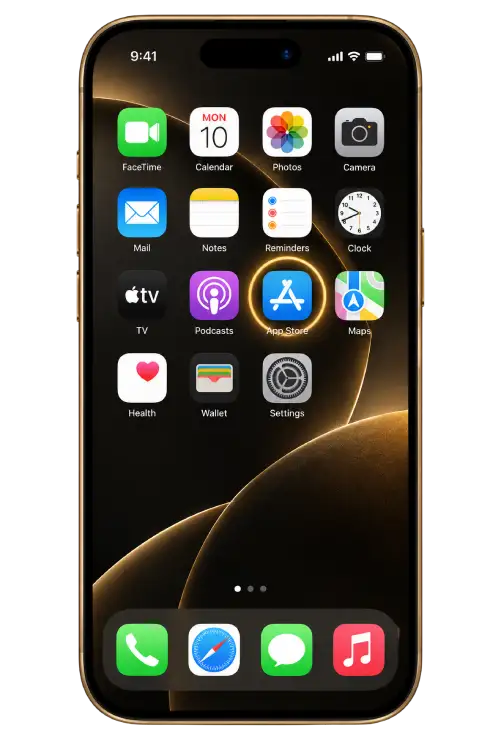
Open the application and read its introductory screens and privacy information. Review the available connection modes before continuing.
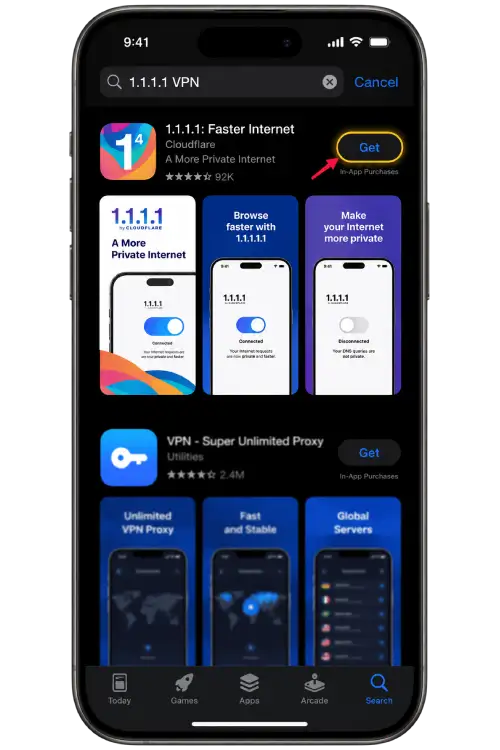
If you choose to enable the connection, iOS may request permission to add a VPN configuration. Approve it only if you recognize the application you installed.
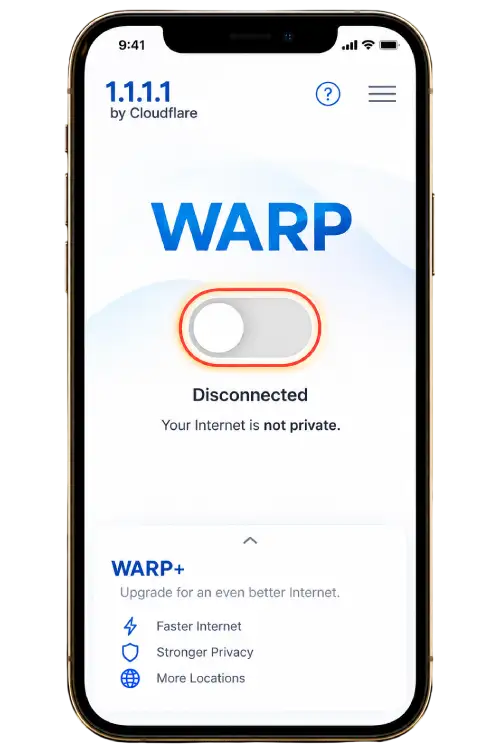
Wait for the application to show its connection status, then return to your browser and reload the page. If access becomes slower, disconnect and compare your normal connection.
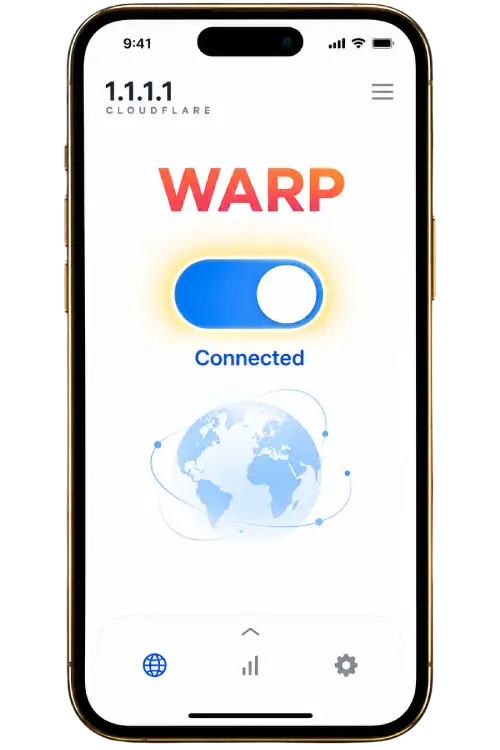
Open the provider website using the button below and follow its Google Play link where available. Check the developer and avoid unrelated download advertisements.
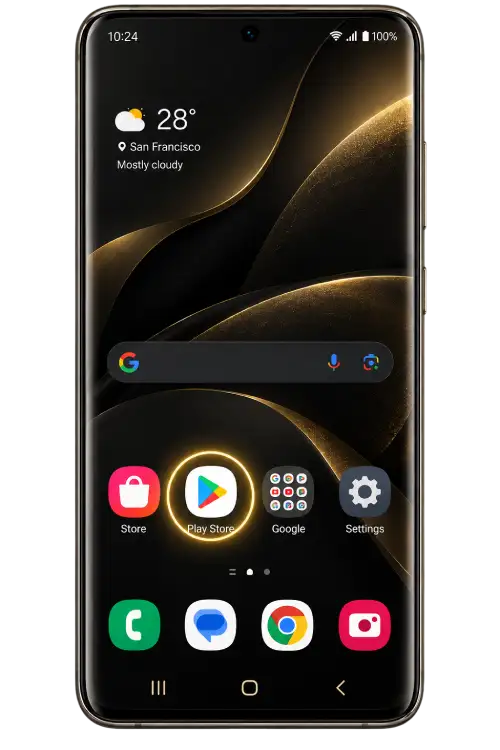
Launch the application and read the setup information. Check the connection mode and privacy settings rather than accepting options you do not understand.
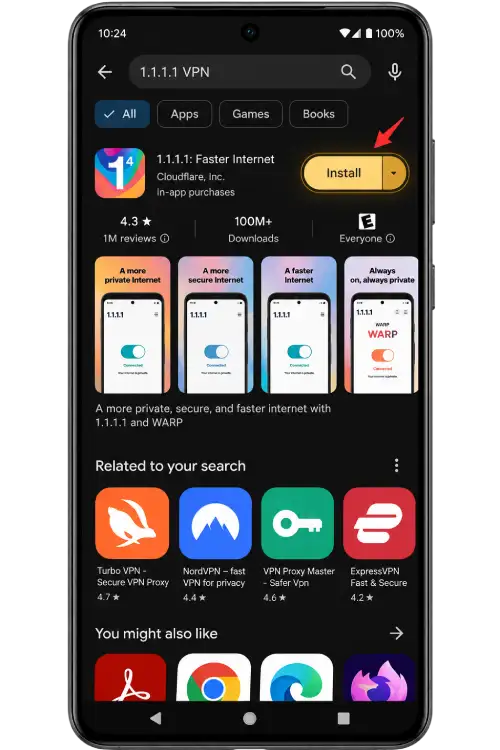
Android may display a system connection request. Confirm the application name and read the notice before allowing it to create a VPN connection.
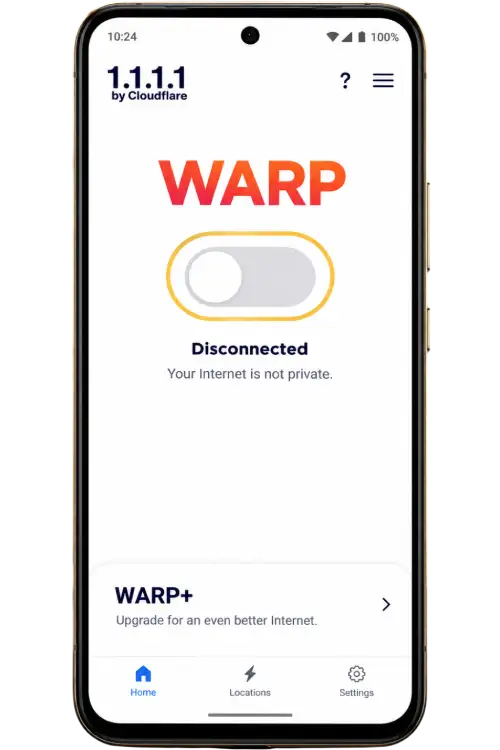
After the connection is established, return to your browser and refresh the page. If the result does not improve, disconnect and try another network or use the support guide.
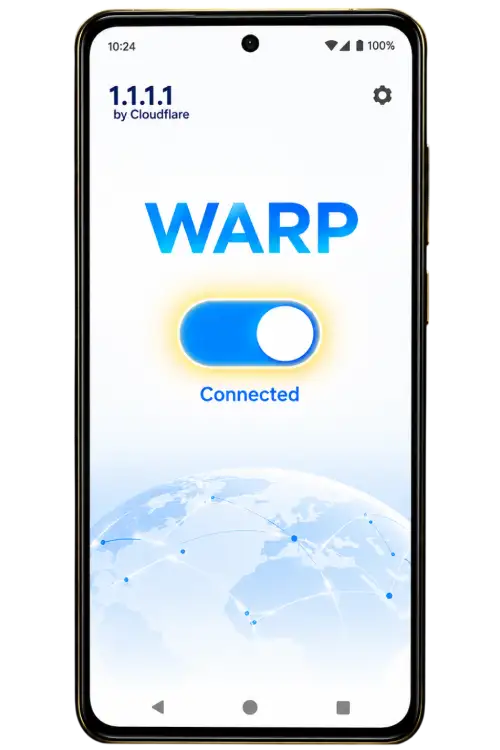
A connection application does not guarantee that a website will load. DNS-only settings and VPN modes work differently. Read the provider’s explanation, use services permitted on your network and disconnect if you no longer need the connection.